You don’t need a $20,000 rebuild to sell online well. If you’re planning wordpress ecommerce development in 2026, the short answer is this: WordPress with WooCommerce is still the most cost‑efficient way to launch and own a flexible store, with strong SEO controls and the headroom to grow from 10 to 10,000 products on your timeline.
Most small stores don’t fail for lack of features. They stall because budgets get eaten by platform rent, speed issues, and scattered tools.
With WordPress, you pay for hosting and the few add‑ons you actually need. You own your data, theme, and checkout. You also pick vendors, not the other way around.
As a mentor who’s built dozens of small-business stores since 2014, I’ll show you the best path: where to spend, where to hold, and the traps to dodge. You’ll get a step-by-step plan, clear tool picks, and a week-one action list you can start today.
Why WordPress Is Still the Go-To eCommerce Platform for Small Businesses
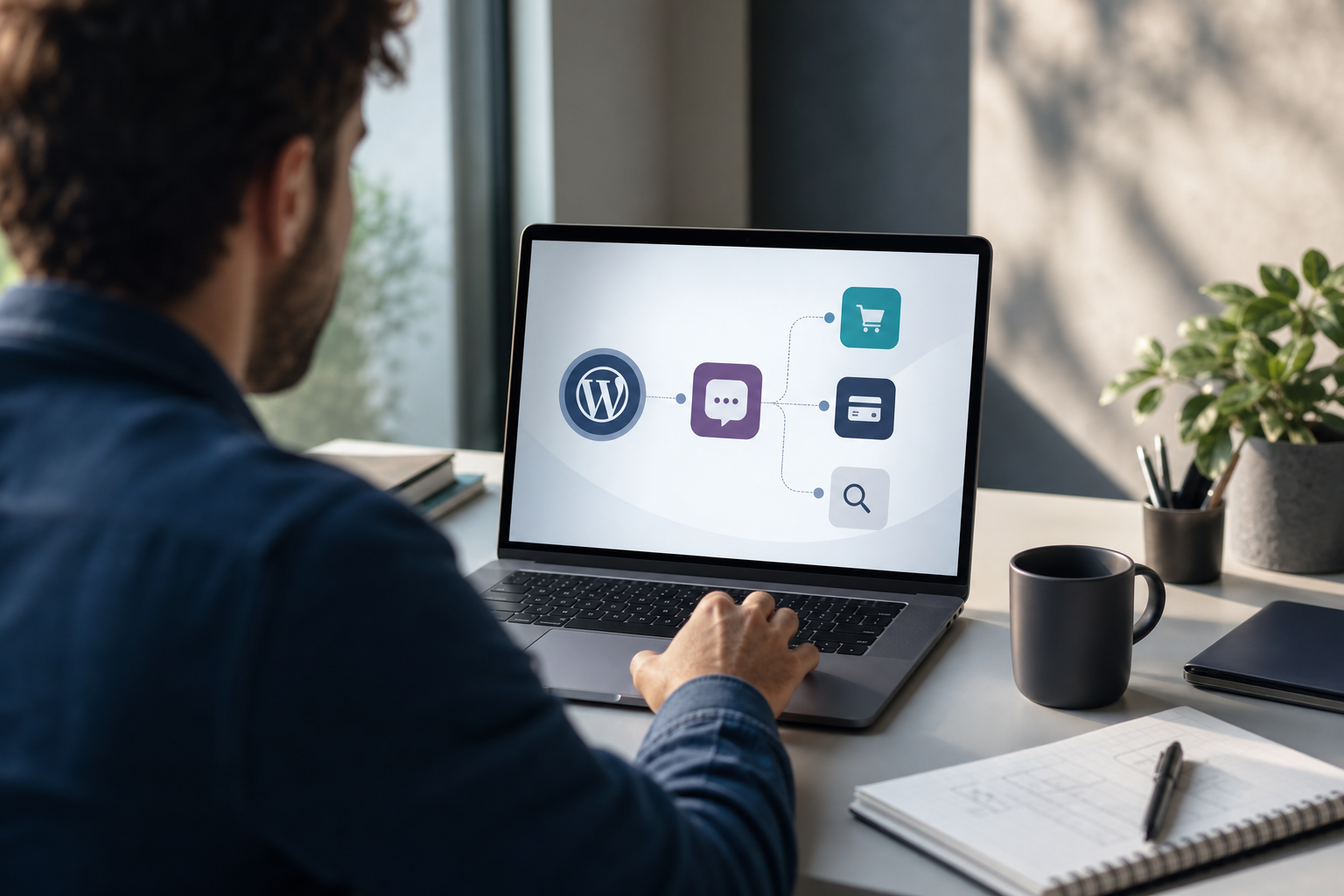
For small teams, you need value first. WordPress hits that mark because the core software is free, WooCommerce is free, and you choose when to add paid tools. As a result, you avoid platform “rent” that stacks up every month and grows with sales. You keep margins.
Moreover, the plugin ecosystem is huge. WooCommerce remains one of the most used store engines in the world, backed by thousands of extensions for payments, shipping, and subscriptions. For background, see the WooCommerce overview on Wikipedia. You can start lean, then add only what helps sales or saves time.
Ownership vs. SaaS Rent
With SaaS builders, you rent the stack. If you switch, you rebuild. On WordPress, you own your store’s theme, content, and product data.
You can swap hosts, change payment gateways, or redesign without losing your base. Therefore, risk and lock-in drop. Control and long-term value rise.
Real SEO Advantages
WordPress gives you fine control over URLs, titles, schema, and speed budgets. In addition, performance and Core Web Vitals matter for search and sales. Google’s guidance on Core Web Vitals explains why stable, fast pages pay off. With a light theme and good caching, you can load fast on mobile and outrank bulky builders.
Scales From 10 to 10,000 Products
You can list your first 10 SKUs today and keep going. Then, when growth comes, upgrade hosting, add search and caching, and split tasks with a staging site. The platform won’t cap you. That flexibility is why wordpress ecommerce development makes sense now and in 2026 as you plan for the next stage.
“Their developer quickly resolved an urgent issue and improved performance. I’ll work with them again.” — David R.
Step-by-Step: Building Your WordPress eCommerce Store
Here’s the fast, proven path I use with small teams. You can do it in a week with focus.
1.
- Write down product types (simple, variable, subscription), tax rules, and if you need bundles or deposits. Confirm payments you’ll accept (card, Apple Pay, PayPal, bank transfer). Keep it lean for launch.
- Budget: Free to low cost for planning; paid only if you need special catalog plugins.
- Tip: If you need bundles or custom fields later, plan a clean SKU structure now.
- Choose Hosting (Cloudways, SiteGround, etc.
- Pick a host known for managed WordPress, backups, and staging. Start small but allow upgrade paths as you scale. Aim for servers with built-in caching and PHP 8.
- Budget: Entry shared or managed plans are low monthly; add CDN later if needed.
- Note: Prioritize uptime SLAs and fast support. That beats a small price gap.
3.
- Use the host’s installer, then add WooCommerce. Complete the setup wizard for currency, tax, and basic pages.
- Budget: Free for core install.
- Pro move: Keep a private staging site from day one for safe changes.
4.
- Choose a clean, fast theme with WooCommerce support and good mobile templates. If you want drag‑and‑drop, Elementor works, but test performance. Start with the stock header, hero, and shop grid, then adjust brand colors and fonts.
- Budget: Free theme to modest one‑time fee for premium.
- Signal to look for: “Theme & Plugin Solutions” experience if you plan to hire help later.
5.
- Add Stripe for cards, and enable PayPal if your buyers ask for it. Set shipping zones, flat rates, or live rates if you have the account. Keep rules simple at launch; complexity adds cart drop‑off.
- Budget: Free gateway plugins; payment fees only on transactions.
- Note: Confirm test payments in sandbox before going live.
6.
- Turn on HTTPS with the host’s SSL. Add a security plugin like Wordfence for login hardening and malware scans. Enforce strong passwords and limit admin users. Read the MDN primer on Transport Layer Security (TLS) if you want the why behind SSL.
- Budget: SSL is usually included; security plugins start free.
7.
- Place test orders, check emails, and proof every step on mobile. Test taxes, coupons, refunds, and guest checkout. Only then flip the store live.
- Budget: Your time plus a small payment processing test charge you refund to yourself.
What Good Builds Share
Good builds share a clear cart and checkout with fewer than five fields for most buyers. They also feature product photos at least 1200px on the long edge, compressed for speed to keep pages snappy on mobile. And they rely on a staging site to test updates before pushing live, so changes don’t derail sales.

“The developer understood my vision and delivered ahead of schedule. The site is easy to use and looks great.” — Maria L.
Also Read!
Best Custom WordPress Theme Development for Startups in 2026
5 Costly Mistakes Small Businesses Make with WordPress eCommerce
Small stores burn time on fixes they could avoid. Here are the five money pits I see most, and how to fix each fast. Mention this section to your team and you’ll skip weeks of churn in 2026.
-
More add‑ons can mean more load time and conflicts, because each plugin adds code and risk. Keep a plugin budget: if a feature won’t raise conversion or save hours, skip it. Remove anything you don’t need and audit quarterly.
-
Mobile accounts for most traffic, and slow pages lose sales. Choose a light theme, compress images, and test your Core Web Vitals; Google explains the “why” and “how” on Core Web Vitals. Aim for fast first load and stable layout.
-
Delaying HTTPS and updates invites trouble. Turn on SSL, force HTTPS, enable auto‑updates on minor versions, and add a firewall plugin. Keep daily backups, limit admin logins, and use 2FA where possible.
-
Glam themes with heavy scripts slow down the cart. Pick performance and clean code first, adding style with design assets rather than bloated features. Test demo pages on a phone before you buy.
-
Live edits crash checkouts and lose orders. Use your host’s staging tool and test updates and new plugins there. Merge only after test orders and speed checks pass.
Moreover, guard your process with one owner for plugin updates and a short change log. That tiny habit saves hours each month in support tickets and rollback work. This is a smart move in any wordpress ecommerce development plan.
Tools and Resources to Accelerate Your WordPress Store Launch
You don’t need a big stack to ship. Start with WooCommerce for the cart, Elementor if you want drag-and-drop layouts, Yoast SEO for titles and sitemaps, Stripe/PayPal for payments, and Wordfence for security. That mix lets you go live without debt on day one.
Agencies like Passion 8 Press offer dedicated WordPress developers when DIY hits its limits. Their differentiators are clear: no hiring hassles, quick onboarding, zero fees, an experienced in‑house team, transparent communication, and daily updates. If you need “eCommerce development expertise,” “Theme & Plugin Solutions,” or “Custom WordPress Plugin Development,” having a specialist on call can keep your launch on track.
“They brought my custom theme vision to life and were easy to work with the whole way.” — John M.
In addition, certifications like CMMI, ISO, NASSCOM, and Gold Partner badges show a mature process and quality focus. That matters once your store starts to grow and you want predictable delivery.
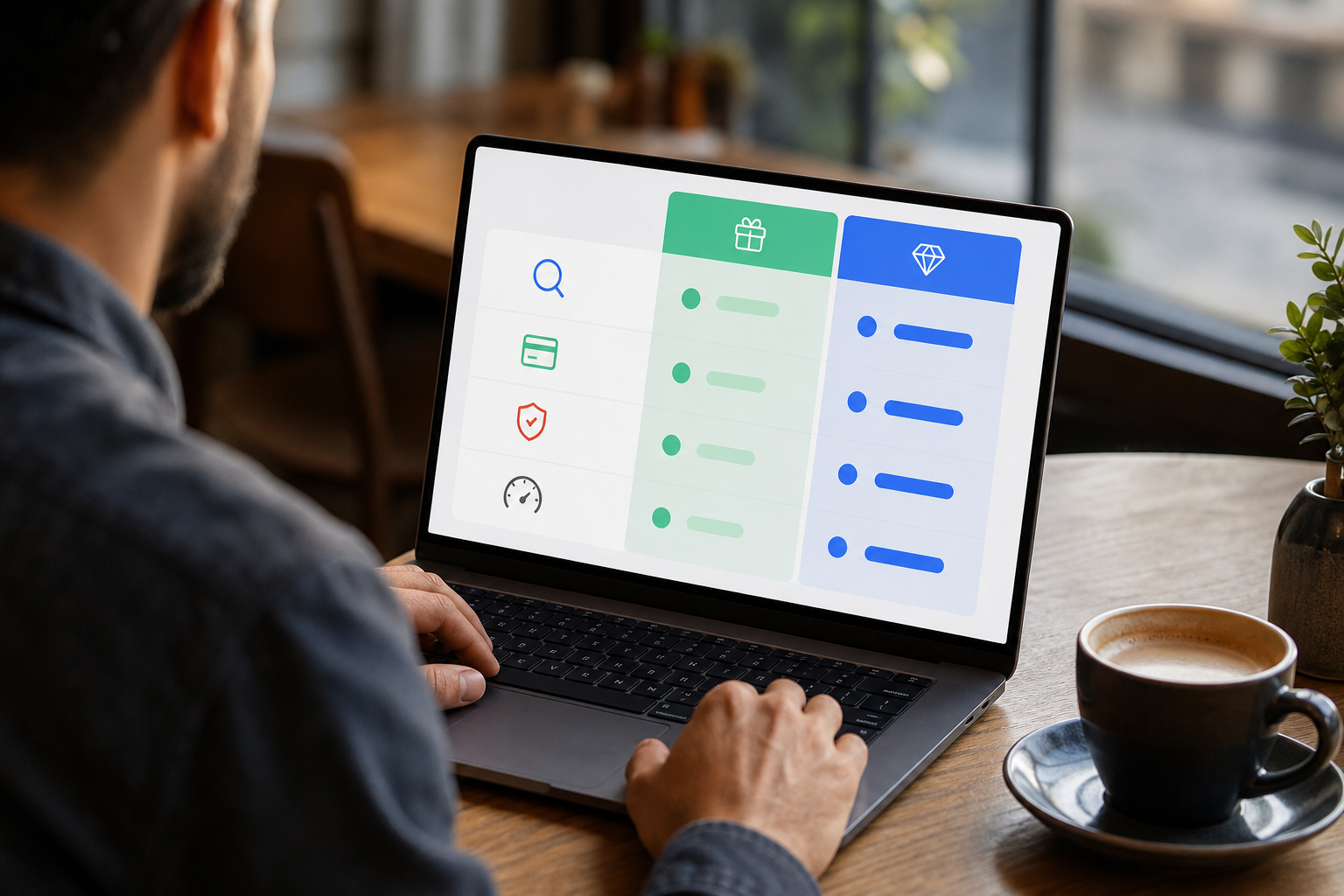
Free vs. Paid Plugin Snapshot
| Need | Free Path | Paid Adds |
|---|---|---|
| SEO | Yoast SEO free for titles, XML | Pro adds redirects, schema helpers |
| Payments | Stripe + PayPal | Subscriptions, BNPL, multicurrency |
| Speed | Host caching + free CDN tier | Premium CDN, image CDNs, advanced cache |
| Security | Wordfence free | Pro firewall rules, country blocks |
| Page Building | Block editor | Elementor Pro widgets/templates |
As your wordpress ecommerce development matures, invest only where returns are clear: faster pages, better checkout, or saved staff hours.
Key Takeaways and What to Do This Week
- WordPress + WooCommerce stays cost‑efficient because you own the stack, add paid tools only when they pay back, and avoid platform rent.
- The plugin ecosystem is deep, with vetted options for SEO, payments, shipping, and security that grow with you from 10 to 10,000 products.
- Speed, mobile, and security on day one protect rankings and revenue; use HTTPS, a light theme, and a staging site.
- Keep your build lean: fewer plugins, clean images, and focused checkout fields raise conversion more than flashy features.
- When DIY stalls, dedicated WordPress developers with daily updates and zero fees can help you launch on time.
What to Do This Week
Day 1: List your products, variants, taxes, and needed payments. Decide “must‑haves” vs “nice‑to‑haves.
Day 2: Pick hosting with backups and staging. Turn on SSL.
Day 3: Install WordPress and WooCommerce. Run the setup wizard.
Launch (Days 4–7)
Day 4: Choose a light theme. Set brand colors and fonts. Day 5: Add Stripe and PayPal.
Configure shipping zones and a simple flat rate. Day 6: Add Yoast SEO and Wordfence.
Upload your logo and favicon. Day 7: List your first 5 products with crisp photos and clear copy. Place test orders on mobile and desktop, then launch.
As you move through 2026, block two hours a month for updates, backup checks, and speed tests. That tiny investment keeps your store healthy and your margins safe.
 , configure (Days 4–6), and launch (Day 7); clean icons; minimal blue/gray style; mobile-friendly)
“This team is my go‑to for WordPress work. Professional, on schedule, and they handle maintenance without drama.” — Emily S.